 All use cases
Jo for social media managers
Carousel planning for social media managers: One shoot. Your next few posts.
Plan Instagram carousels from one brand shoot on your Mac. Choose photos, prepare several posts together, and preview the covers in your feed.
A few posts from one brand shoot
The photos are back from a shoot. You need a few posts from them: an introduction, a closer look, and some behind-the-scenes details. Jo keeps the whole set beside the carousels you’re building, so you can decide what belongs in each one.
Find the photos for each post.
Import the shoot from files or Photos. Compare similar shots, mark your favourites, and start a carousel for each idea.
Prepare the posts together.
Move photos between posts, adjust their order and crops, and write a caption for each carousel.
See the next few covers in your feed.
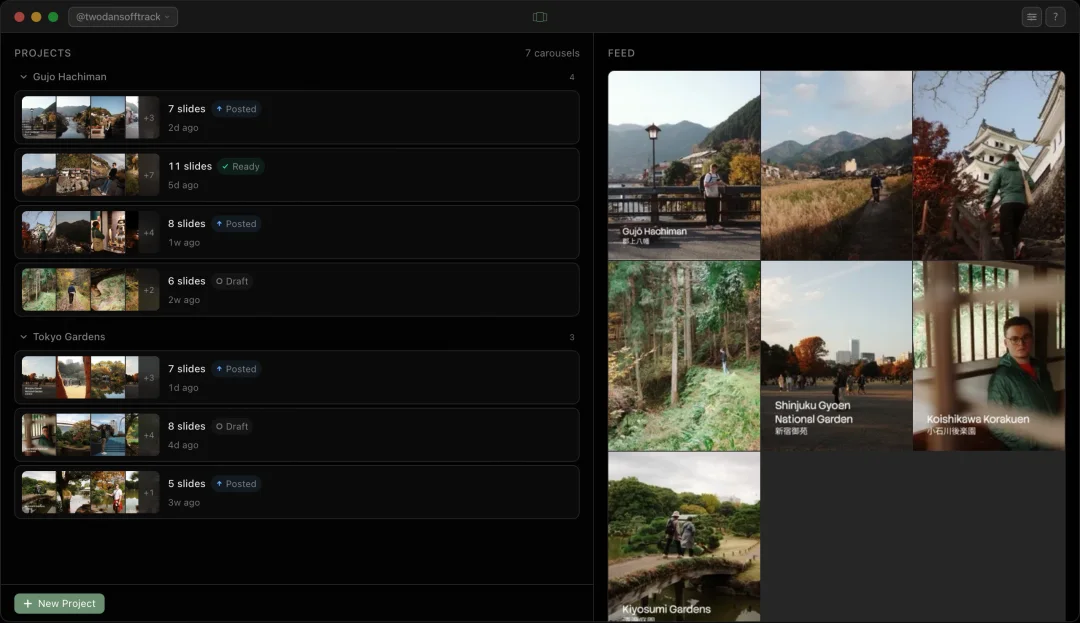
Try your planned covers beside published posts from a public profile. Adjust the order to see what works together.
Export, then publish your way.
Export the finished slides on your Mac, then use your usual app to publish or schedule them.
The shoot, the posts and the feed, in one window.
The library on the left with the favourites marked. The carousels on the right, in the order you choose. The feed for each profile, one click away. Nothing leaves the Mac until you export.
Questions from social media managers
Can I prepare carousels for more than one account?
Yes. Use a separate profile for each account, then organise its photos and carousels into projects. The same Jo purchase covers all the profiles you prepare posts for. There is no per-account subscription.
How do I turn one shoot into several social media posts?
Import the photos into a project and create a carousel for each idea. For a product shoot, you might make an introduction, a detail post and a behind-the-scenes post. Mark your favourites, move photos between the carousels, and check the unused photos before finishing.
Does Jo schedule or automatically publish posts?
Jo prepares your slides for export. It does not schedule or publish posts. Export your finished carousels on your Mac, then use your usual publishing app or scheduler. Jo fits into the photo selection and preparation part of that workflow.
Can I preview a feed without signing in?
Yes. Enter a public profile handle to view published posts beside your planned carousels. Jo does not ask for your social account password. Loading published posts needs an internet connection; private profiles are not supported for this preview.
Can I write captions and adjust crops in Jo?
Yes. Write a caption for each carousel and adjust the crop of each slide. Try a different cover, change the slide order, and check the posts together before you export.